If you have received an email saying your Google Drive, iCloud or OneDrive storage is full and you need to act immediately, stop right there. Chances are, it is a scam. Thousands of Australians are receiving these fake cloud storage emails every week in 2026, and many are losing their personal data and money because of them.
A cloud storage scam email is a fake message pretending to be from Google, Apple or Microsoft. It warns you that your storage is full and pushes you to click a link. That link leads to a fake website designed to steal your login credentials or payment information. In 2026, these phishing emails are targeting Australians at record rates.
This guide will help you identify these scam emails, understand how they work and know exactly what to do if you receive one.
What Are Cloud Storage Scam Emails?
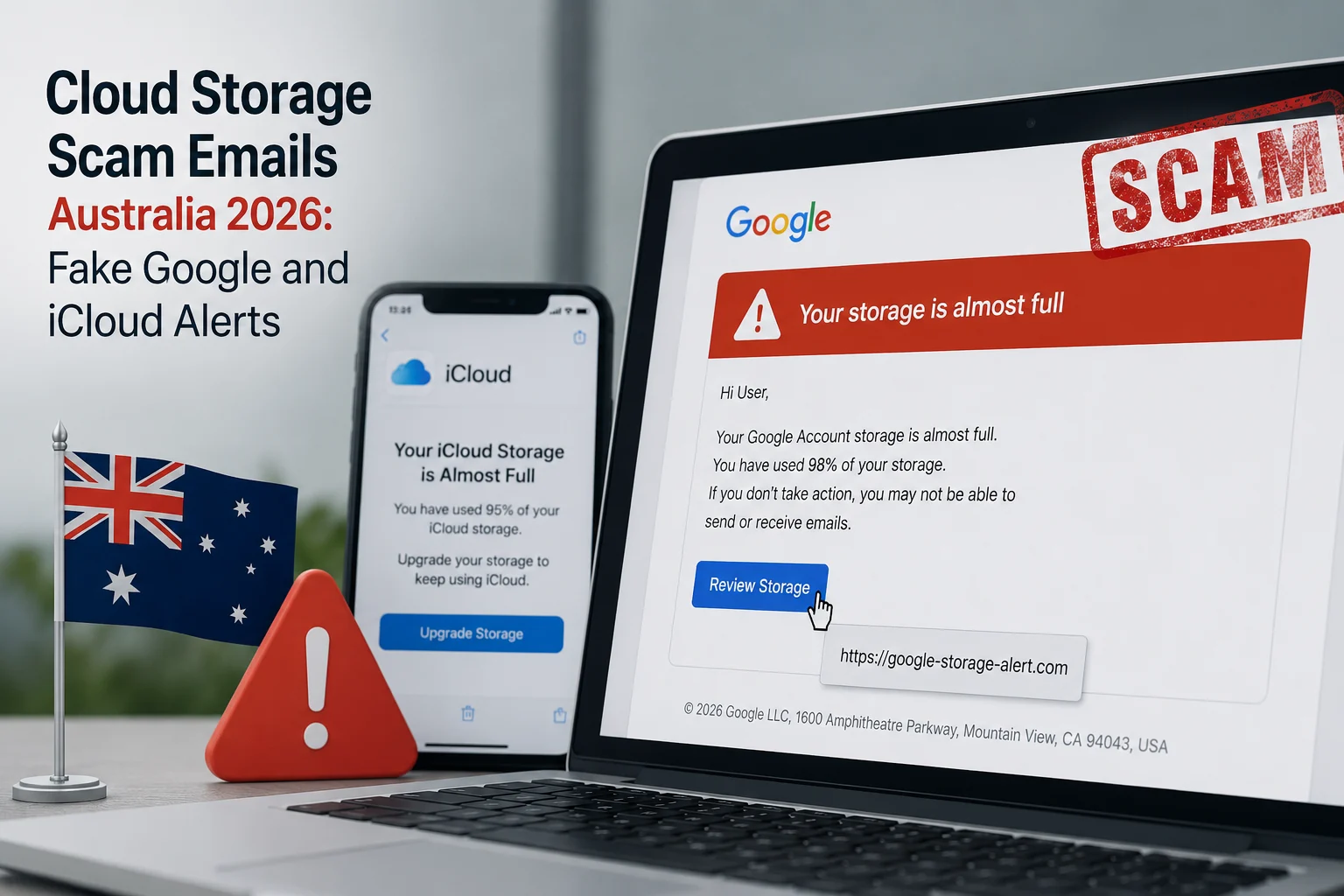
Cloud storage scam emails are phishing messages designed to look like official notifications from Google, Apple or Microsoft. They tell you that your storage is almost full or has been compromised, and they push you to click a link to “upgrade” or “fix” the issue.
The link takes you to a fake website that looks identical to the real login page. Once you enter your email and password, scammers steal your credentials. In some cases, they also ask for credit card details to process a fake storage upgrade payment.
These emails are not new, but in 2026 they have become far more convincing because scammers are now using AI tools to write cleaner, more professional looking emails that are harder to distinguish from the real thing.
Why Are Australians Being Targeted?
Australia has one of the highest rates of cloud service adoption in the Asia Pacific region. Most Australians use at least one cloud platform for personal photos, work documents or backups. Scammers know this and they exploit it.
According to ScamWatch, Australians reported over 74,000 phishing incidents in 2023, making it one of the most reported scam types in the country. Cloud storage phishing has emerged as one of the fastest growing variants of this threat in 2026.
The timing also matters. Scammers often send these emails during busy periods like tax season (July to October) or the holiday shopping season when people are more likely to click without thinking.
A Real Example from Australia
In early 2026, a Melbourne woman lost complete access to her iCloud account after clicking a fake storage warning email. The scammers locked her out and accessed over 10 years of family photos, personal documents and saved passwords. They then demanded payment to restore access. By the time she contacted Apple support, the damage was already done. Her case was reported through IDCARE and is now part of an ongoing investigation.
Stories like hers are becoming more common across Australia every month.
What Do These Scam Emails Look Like?
Here are real examples of subject lines being used in 2026.
- Fake Google Email: “Your Google Drive storage is 98% full. Upgrade now to avoid losing your files.”
- Fake Apple Email: “Your iCloud storage is full. Photos and backups will stop syncing. Tap here to manage your plan.”
- Fake Microsoft Email: “OneDrive Alert: Your storage has exceeded the free limit. Verify your account to continue.”
These emails typically include official looking logos, proper formatting and even fake footer links to privacy policies and help centres. At first glance, they look completely real.
How This Scam Actually Works
Understanding the step by step process helps you spot it before any damage is done.
Step 1: You receive an email that appears to be from Google, Apple or Microsoft.
Step 2: The email warns you about a storage problem and creates urgency. Words like “immediate action required” or “your files will be deleted” are common.
Step 3: You click the link and land on a website that looks exactly like the real login page.
Step 4: You enter your email address and password thinking you are signing into your real account.
Step 5: Scammers now have your login credentials. They can access your emails, photos, documents and contacts.
Step 6: In many cases, the fake site also asks for payment details to process an “upgrade.” If you enter your card details, unauthorised charges will follow.
Also Check: Depop Social Media Scams in Australia
Red Flags to Identify Fake Cloud Storage Emails
Before you click anything, check for these warning signs.
The sender email address does not match the official domain. Google emails come from @google.com, not @google-storage-alert.com.
The email creates extreme urgency with phrases like “act within 24 hours or lose all data.”
The link URL does not match the official website. Hover over the button without clicking to see where it actually leads.
The email asks you to enter your password or payment details through a link. Google, Apple and Microsoft will never ask for this via email.
There is no personalisation. The email says “Dear User” instead of your actual name.
The email arrived in your spam or junk folder. Your email provider has already flagged it as suspicious.
Real vs Fake Cloud Storage Emails
| Feature | Real Email | Scam Email |
|---|---|---|
| Sender Address | @google.com or @apple.com | Random or misspelled domain |
| Personalisation | Uses your full name | Says “Dear User” or “Dear Customer” |
| Links | Lead to official website | Lead to unknown domain |
| Urgency | Gentle reminder | Threatening language |
| Payment Request | Directs to app settings | Asks for card details via link |
| Grammar | Professional Australian English | May have subtle errors |
| Unsubscribe Option | Working official link | Missing or fake |
Also Read: AI Powered Bank Scams in Australia 2026
What to Do If You Clicked the Link
If you have already clicked a link or entered your details, take these steps immediately.
- Change your password right now. Go directly to the official website and update your password for the affected account. Do not use the link from the email.
- Enable two factor authentication. This adds an extra layer of security so that even if scammers have your password, they cannot access your account without a verification code.
- Check your account activity. Google, Apple and Microsoft all allow you to review recent sign in activity. Look for any logins from unfamiliar locations or devices.
- Contact your bank. If you entered credit card or payment details, call your bank immediately. Request a card block and dispute any unauthorised transactions.
- Scan your device. Run a full antivirus scan on your phone or computer to check for any malware that may have been installed.
- Report the scam. Report the email to the relevant authorities and delete it from your inbox.
How to Report Cloud Storage Scam Emails in Australia
Reporting helps authorities track and shut down these operations. Here is where to report.
- ScamWatch (ACCC): Visit scamwatch.gov.au to lodge a report about the scam email you received.
- ReportCyber: Visit cyber.gov.au/report to report the phishing attempt to the Australian Cyber Security Centre.
- Google: Open the suspicious email in Gmail, click the three dot menu next to the reply button and select “Report Phishing.” This sends the email directly to Google’s security team for review.
- Apple: Forward suspicious iCloud emails to reportphishing@apple.com. This is the official email address confirmed by Apple Support.
- Microsoft: If you use Outlook, select the suspicious email, click “Report” in the toolbar and then select “Report Phishing.” If you are a Microsoft 365 business user, you can also forward the email to phish@office365.microsoft.com for investigation.
- IDCARE: If your personal information has been compromised, contact idcare.org for free identity and cyber security support. IDCARE is Australia and New Zealand’s national identity protection service.
How to Protect Yourself Going Forward
- Never click links in storage warning emails. Instead, open your browser and go directly to drive.google.com, icloud.com or onedrive.com to check your actual storage status.
- Use a password manager to create unique passwords for every account. If one password gets stolen, your other accounts stay safe.
- Turn on two factor authentication on all cloud accounts. This is the single most effective way to prevent unauthorised access.
- Keep your operating system and apps updated. Security patches fix vulnerabilities that scammers try to exploit.
- If you want to verify whether a suspicious link is safe before clicking, you can use our free URL Checker Tool to analyse it instantly.
- Received a suspicious message that does not look right? Run it through our Scam Message Checker to find out if it is legitimate or a phishing attempt.
Frequently Asked Questions
Yes, Google does send legitimate storage notifications. But Google will never ask you to click a link to enter your password or payment details directly. You can always check your real storage status at one.google.com.
Yes. If scammers get your cloud login credentials, they can access everything stored in your account including photos, documents, emails and contacts. In some cases they may also lock you out of your own account.
If you only visited the page without entering any information, your risk is lower. However, run an antivirus scan on your device as some phishing pages can install tracking software automatically when the page loads.
No. These scams target users of Google Drive, Apple iCloud, Microsoft OneDrive and even Dropbox. Anyone using cloud storage services can be a target regardless of which platform they use.
Always check the sender email address, hover over any links without clicking to see the real URL, and verify your storage directly through the official app or website. Real companies will never ask you to enter passwords or payment details through an email link.